How Do I Add Animation and Sound to Text and Objects in a PowerPoint Presentation?
Click on the question above to view a video by Microsoft Office's Online Training web page. Use the controls on the video viewer to stop, pause and play the video.


How Can I Create a Basic Office 2007 PowerPoint Presentation Quickly?
Click the above question to view a video on creating a PowerPoint presentation quickly. The video is a Demo from the Microsoft Office Online Training Website. Use the controls on the video viewer to stop or pause the video. Visit their link http://office.microsoft.com/en-us/powerpoint/HA102408141033.aspx for other Training, How-to and Help videos on PowerPoint and other Office applications..
How Can I Add Narration to a Ready Made Slideshow?
Click on the Question above to see a video on adding naration to a PowerPoint slideshow using the Slideshow Tools on the PowerPoint Ribbon. Click on the video controls to pause the video.
How Do I Get the Audio File to Play on Each Slide in My PowerPoint Without Clicking It?
If you are asking this question, I'm assuming you have created a sound recording or audio file for each slide using the Insert>Sound>Record Sound in PowerPoint 2007. The audio file you created is represented by an icon in the shape of a gold speaker. To get to the Sound Tools for each audio file on each slide, click on the speaker icon on each slide to select it. Look to the Ribbon now and you will see the the Sound tab. Click on the Sound tab to show the Sound Tools. This is what you should see: 


With the Sound Tools showing click on the down arrow next to Play Sound and select Automatically. Then click back to the Animation tab on the Ribbon. To set each slide to play the length of the audio file, click on each slide. (This is where you need to know how long the recording is.) Select Automatically After: and set the time for how long that audio recording is. To set the time click on the up and down arrows next to the digital reading.

If you do not remember how long the audio file is you can find out by clicking on Animation>Custom Animation>Go to the side panel on the right of the screen>Click on down arrow next to Recorded Sound>Select Effect Options. 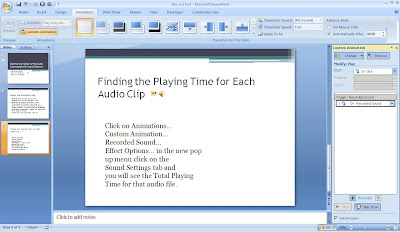

A new window opens> Select the Sound Settings tab. In this window you will see the Total Playing Time for the audio file. The Total Playing Time is the time you need to put in the Automatically After: digital timer mentioned above.

Can I download music from the database, Classical Music on the library's webpage and burn it to a CD?
The only music you can download and burn to a CD is music you have purchased. The music in our music databases (Classical Music Library & Naxos) are streaming files. What that means is the music you are listening to is located on a server and we have a subscription to listen to it. The school does not have access to the actual music files for download.
Classical Music Library does have a free music download that is a promotional link to promote classical music. It appears front and center on the Classical Music Library web page. Every month the company gives free downloads to a music track that they select. That is the only free music download. If you start searching through the music and listening to the tracks, you will see that some tracks can be purchased for download. If you click on the the track to play it, you'll see a yellow icon appear under the download. Click on it and it opens a window that tells you the cost and how to buy it.
Naxos is a little different. The music tracks you listen to are still streaming from a database server but they provide a link to a website where you can buy the music. With Naxos you can use a static link from a track and link to it from another location. Here is one to try out: How's Your Mug?, http://cstcc.naxosmusiclibrary.com/stream.asp?s=41478%2Fcstccpaid04%2Fq69165%5F104
Classical Music Library does have a free music download that is a promotional link to promote classical music. It appears front and center on the Classical Music Library web page. Every month the company gives free downloads to a music track that they select. That is the only free music download. If you start searching through the music and listening to the tracks, you will see that some tracks can be purchased for download. If you click on the the track to play it, you'll see a yellow icon appear under the download. Click on it and it opens a window that tells you the cost and how to buy it.
Naxos is a little different. The music tracks you listen to are still streaming from a database server but they provide a link to a website where you can buy the music. With Naxos you can use a static link from a track and link to it from another location. Here is one to try out: How's Your Mug?, http://cstcc.naxosmusiclibrary.com/stream.asp?s=41478%2Fcstccpaid04%2Fq69165%5F104
You'll need headphones.
Can I link to a "Theater in Video" clip and put it in my PowerPoint?
Yes, you can but read this information first about how to use static URLs & Embedded Links from the Theater in Video Website:
Each video contains links to both a Static URL or an Embed link on the service.
These can be used to deep link directly to a video and can be placed:
Open the PowerPoint slide.
Click on the Insert tab on the Ribbon.
Click on Hyperlink, in the Hyperlink text box right click and paste your URL or Embed link.
Click OK.
The link will now be on your slide. Remember that this link will only work if you are connected to the Internet. If you are off campus, you will have a pop-up box appear asking for the college's username and password. To check to see if the link is working you will need to view the side in slideshow and click on it from there.
-http://chattanooga.ativ.alexanderstreet.com/video/help/index.php?id=1070
Each video contains links to both a Static URL or an Embed link on the service.
These can be used to deep link directly to a video and can be placed:
-In teaching resources.
-On services like WebCT and Blackboard.
-As hyperlinks in web pages on intranet/extranet sites.
-In emails.
-In Word documents.
-As bookmarks in you Internet browser.
Open the PowerPoint slide.
Click on the Insert tab on the Ribbon.
Click on Hyperlink, in the Hyperlink text box right click and paste your URL or Embed link.
Click OK.
The link will now be on your slide. Remember that this link will only work if you are connected to the Internet. If you are off campus, you will have a pop-up box appear asking for the college's username and password. To check to see if the link is working you will need to view the side in slideshow and click on it from there.
-http://chattanooga.ativ.alexanderstreet.com/video/help/index.php?id=1070
Subscribe to:
Posts (Atom)